The Amazon S3 subscriber also allows you to override certain configurable fields in the incoming notification (see Configuring the Subscriber) with the following keywords:
| Keyword | Field Overridden | Notes |
|---|---|---|
| aws_access_key | AWS Access Key ID | |
| aws_secret_key | AWS Secret Key | |
| s3_bucket | Bucket | |
| s3_remote_dest | Destination Path | |
| s3_local_src | Source Path | |
| s3_encryption | Encryption | Must be "None" or "SSE" |
| s3_version | Enable File Versioning | Must be "Default", "Yes" or "No" |
| s3_permission | Permissions | Must be "PRIVATE", "PUBLIC_READ", "PUBLIC_WRITE", "AUTH_READ", "BUCKET_READ", or "BUCKET_FULL". For more information, see: https://docs.aws.amazon.com/AmazonS3/latest/userguide/acl-overview.html#CannedACL. |
Example
Consider the following subscription configuration:
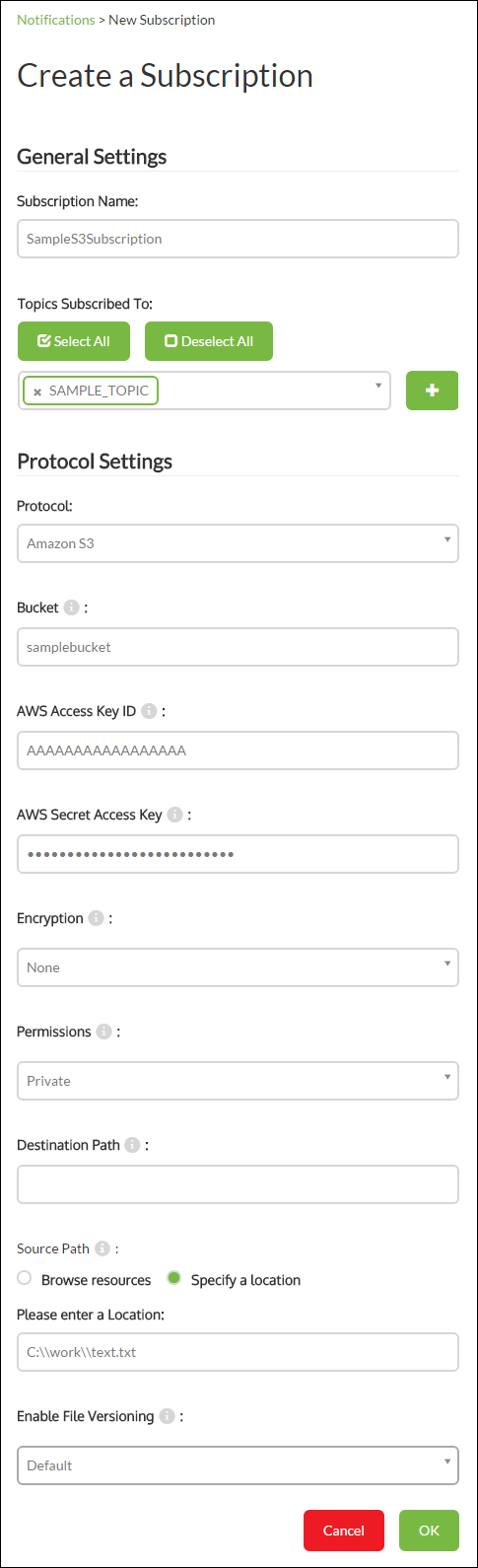
If the incoming notification contains none of the configurable keywords, the subscription fails to upload the specified data due to the fake Amazon security credentials.
If the incoming notification contains:
{
"aws_access_key":"AKIAIRJZIINGIEF5PQNA",
"aws_secret_key":"680Yq3GRSK2N8ktZF7uouIFxfRdPSm4LD/WKwa6r",
}
The specified file (test.txt) is uploaded to the root of bucket samplebucket.
If the incoming notification contains:
{
"aws_access_key":"AKIAIRJZIINGIEF5PQNA",
"aws_secret_key":"680Yq3GRSK2N8ktZF7uouIFxfRdPSm4LD/WKwa6r",
"s3_bucket":"mybucket",
"s3_remote_dest":"myfolders/testfolder",
"s3_local_src":"C:\\work\\",
"s3_encryption":"SSE",
"s3_version":"Yes"
"s3_permission":"PRIVATE"
}
The entire folder C:/work/ is uploaded to folder myfolders/testfolder inside bucket mybucket. Before the data is uploaded, file versioning is enabled, and the data is encrypted by Amazon S3.